
How to Auto Type Text in Google Docs, Step by Step
Google Docs has no built-in auto typer. Here's how to type prepared text with a Chrome extension, and when pasting or voice typing is the better choice.
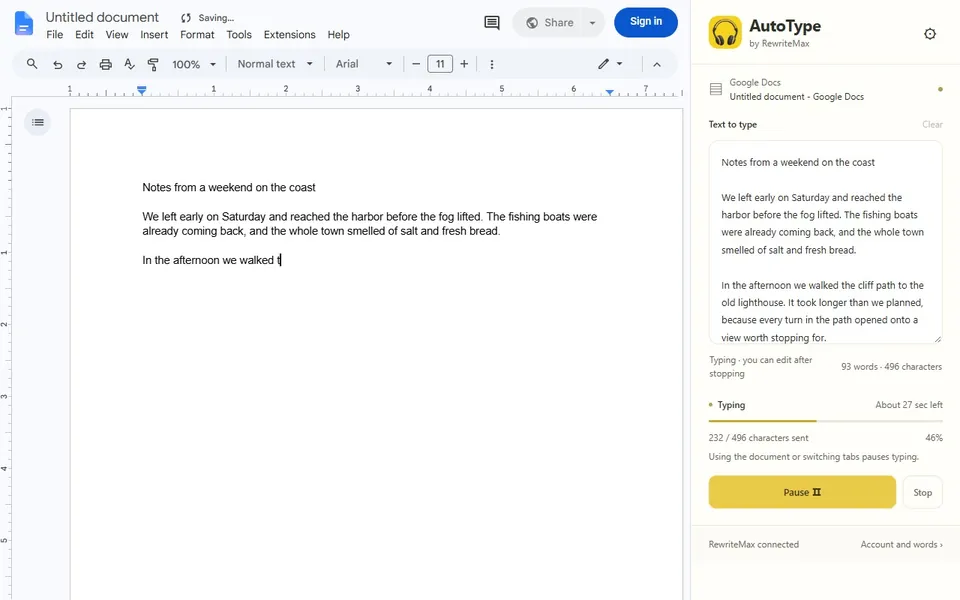
Google Docs has voice typing but nothing that types prepared text for you, so auto typing takes a Chrome extension. This guide shows how to do it with AutoType, the extension we make, and when pasting or voice typing is the better choice. To weigh it against other extensions, see seven auto typers compared.
Three ways to get text into a Google Doc
| Way | Best for | Speed | What you need |
|---|---|---|---|
| Paste | Finished text you just want in the document | About a second | Ctrl+V, or Ctrl+Shift+V to drop the formatting |
| Voice typing | Text you haven't written yet | Your speaking pace | A microphone and Tools > Voice typing, in the latest Chrome, Edge or Safari |
| Auto typer | Prepared text you want entered one character at a time | 10 to 300 WPM | A browser extension |
If you only need the words in the document, paste them. An auto typer is slower on purpose, and 1,000 words takes minutes rather than a second. It earns its place when the typing itself is useful:
- Recording a tutorial or demo, where text should appear gradually on screen.
- Resting your hands, when you'd otherwise retype a long prepared passage.
- Avoiding pasted formatting, because typed text takes on the document's own style.
How to auto type with AutoType
You need desktop Chrome and a Google Doc you can edit.
- Add the extension. Go to the AutoType page and choose Add to Chrome.
- Open the panel. Click the AutoType icon in your toolbar. A side panel opens next to your document.
- Connect your account. Press Connect RewriteMax, sign in and approve the connection. A free account works. The panel updates by itself.
- Place your cursor. Open your document and click where the text should begin.
- Add your text. Paste it into the panel, which shows the word count and how long typing will take at your speed.
- Choose a speed. Open the gear icon and set anything from 10 to 300 words per minute. You can also set how long to wait before typing starts: 3, 5 or 10 seconds.
- Press Start typing. During the countdown you can still click in the document to change where typing begins. After that, leave the document in front.
Pause, resume and pick up later
Typing pauses by itself when you click or type in the document, or when you switch tabs. Esc and Alt+Shift+P pause it too. To carry on, go back to the document and press Resume. If it keeps stopping, see why auto typers stop in Google Docs.
With Save progress on, you can also come back after a refresh or a closed tab. Open the document, check what's already there, place the cursor, confirm the position and resume. Saved text stays in your browser for up to 14 days. AutoType also warns you before you type the same draft into the same document twice.
What gets typed, and what doesn't
We tested these on real Google Docs. A 4,830-character draft came out exactly as written, including while the page scrolled.
Typed as written: line breaks and blank lines, symbols, accented letters, Chinese and emoji. List markers like "1. " and "- " stay as plain text instead of turning into automatic lists.
Not carried over: bold, links and tables. AutoType sends plain characters.
Changed by Docs: smart quotes and a capital on the first word, the same as when you type by hand. You can turn those off in Tools > Preferences.
Refused: documents in Viewing mode or without edit access. AutoType stops before it starts and uses no words. It only works in Google Docs in desktop Chrome, so Word Online and phones aren't supported. For a Word file, type in Docs and download a .docx.
Free and Pro
| Free account | Paid plan (AutoType Pro) | |
|---|---|---|
| Words | 500 a day, renewed at 00:00 UTC | Your plan's monthly words, shared with rewriting and read-aloud |
| Typing | One steady speed you choose | Adds natural typing: adjustable typos, rollback, pauses and paragraph review |
| Long drafts | Pauses at the limit and continues the next day | Needs enough plan words for the rest of the draft |
English words and Han characters each count as one word. The natural typing effects change how the text is entered, and the final text stays the same. Any of them can be turned off.
What happens to your text
Your draft stays in your browser. Neither it nor your document's text goes to RewriteMax, which receives only word counts and hashed identifiers. AutoType doesn't ask for access to your Google account. The extension privacy notice has the details, and these six checks work for any auto typer.
Use it for text you're allowed to enter this way
AutoType types what you give it. It doesn't write or check anything, and it isn't a way to show that you wrote something by hand, so don't use it to give that impression. If a teacher, client or employer expects you to draft in the document yourself, follow their rules.
Common questions
Does Google Docs have a built-in auto typer? No. Its voice typing turns speech into text, but nothing in Docs types prepared text for you.
Can it keep typing while I use another tab? No. Typing pauses when you switch tabs. Go back to the document and press Resume.
Can I stop halfway? Yes. Press Stop. Whatever has been typed stays in the document.
Does AutoType read my document? No. It sends keystrokes to the page, looks at where the cursor is, and pauses when you use the document.
Why did my straight quotes turn curly? That's a Google Docs setting rather than AutoType. It's under Tools > Preferences > Use smart quotes.